03 / AI REPO RADAR
heygen-com/hyperframes
71,541 stars+5,674 / 7dLicense: Apache-2.0Last push: On the radar:
Open-source framework that turns HTML, CSS and seekable animation into deterministic MP4 video, with a skill set that lets coding agents plan, write, preview and render videos.
What HyperFrames is and the problem it addresses
HyperFrames is an open-source framework that turns HTML, CSS, media and seekable animations into deterministic MP4 videos. The project tagline is short: write HTML, render video, built for agents. The README describes three ways to use it: locally through a command line tool, from AI coding agents through skills, or as the rendering core behind hosted video authoring workflows.
The problem it targets is making video in a way a coding agent can actually do. Agents already write HTML well, so instead of asking them to learn a custom timeline format or a React project, HyperFrames lets you describe a whole video with ordinary HTML files. The README stresses that this keeps the handoff between people and agents simple, because both read and edit the same kind of file.
GitHub metadata shows 71541 stars, the Apache-2.0 license and a most recent push on the twenty-fifth of October, two thousand twenty-six. Those figures only reflect community interest and say nothing about render quality. The rest of this article relies solely on the README written by the authors.
How it works: HTML, data attributes and headless Chrome
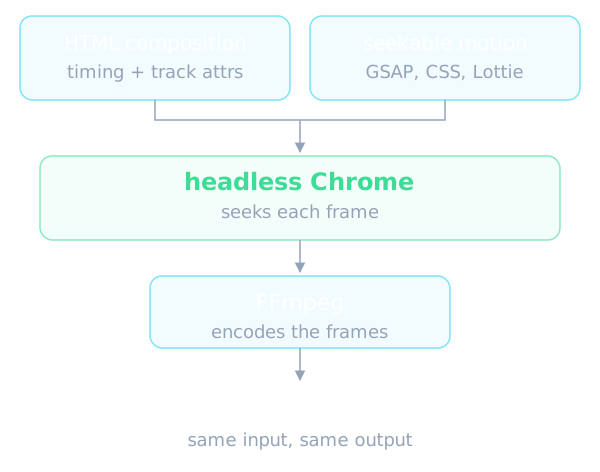
According to the README, you define a video as HTML and add data attributes for timing and tracks. For motion you can use GSAP, CSS, Lottie, Three.js, Anime.js, WAAPI, or write your own frame adapter. The key requirement is that animation must be seekable to any frame, because the renderer has to put the page at the exact moment of the frame it needs.
The rendering flow is described like this. You preview instantly in the browser. When rendering, the engine seeks each frame in headless Chrome and then encodes the result with FFmpeg. Because each frame is captured by seeking rather than by recording in real time, the README states that the same input produces the same video. You can render locally or in Docker.
The README also lists the packages in the repository. The hyperframes package is the command line tool for creating, previewing, linting and rendering. The core package holds types, parsers, generators, the linter, the runtime and frame adapters. The engine package is the page-to-video capture engine using Puppeteer and FFmpeg. The producer package is the full pipeline for capture, encode and audio mix. There is also a studio package for the browser-based editor, a player package that is an embeddable web component, a shader-transitions package for WebGL transitions, and an aws-lambda package for distributed renders.
Main features
The README calls the set of tools the HyperFrames Stack. The command line tool scaffolds, previews, lints, inspects and renders local video projects. Core, Engine and Producer parse compositions, drive headless Chrome, encode video and mix audio. The catalog is a library of reusable blocks and components for transitions, overlays, captions, charts, maps and effects.
The Studio is listed as available but evolving, a browser surface for previewing and editing compositions. For large-scale rendering, the README says you can deploy a distributed render stack on AWS Lambda and drive renders from a laptop or from CI. There is also a community playground for previewing, iterating, sharing and rendering HTML-native video projects.
Another piece is frame.md. The README describes it as a translation layer between a web design spec and the needs of video: it takes the same tokens and rules but rewrites them so an agent can compose a promo video without guessing at scale or reaching for web chrome. The output is a superset of DESIGN.md that the whole toolchain can read. The README also lists a few sample looks you can browse and remix, such as Biennale Yellow, Blue Professional and Bold Poster.
The README names the kinds of things you can build: product launch videos and feature announcements, pull request walkthroughs with animated code diffs, narration and captions, data visualizations, chart races and map animations, social videos with kinetic captions, overlays and music, docs-to-video, PDF-to-video and site-tour explainers, and reusable motion graphics for automated content pipelines.
Skills for agents
The part most relevant to people building AI agents is the skill set. The README says HyperFrames ships seven skills that teach agents the production loop: plan the video, write valid HTML, wire seekable animations, add media, lint, preview and render. The skills are said to work with Claude Code, Codex, Cursor, Gemini CLI, IBM Bob and other coding agents that support skills.
The core set has four skills. The hyperframes skill is the one to read first for any request to make, edit, animate or render a video, because it holds the render contract and the work loop and points to references for format, motion, look, captions, whole films and storyboards. The hyperframes-cli skill covers the command line tool by job, from scaffolding, checking and looking at frames to editing the timeline, previewing, rendering locally or in the cloud, publishing and project history, plus reading its JSON output and recovering from build or render failures.
The hyperframes-registry skill covers about 450 ready-made blocks and components installed as editable source, including transitions, overlays, titles, kinetic type, captions, charts, maps, 3D and camera moves. The README advises using it before hand-building any named visual. The media-use skill helps get or make media for a video such as music, sound effects, images, icons, logos, voiceover, avatars, generated video, transcripts, cutouts and colour grades, using HeyGen or free local tools.
The remaining three install on demand. The figma skill brings assets, brand tokens and storyboard frames from Figma into a video. The slideshow skill builds a presentation or pitch deck that can be navigated, with presenter mode and speaker notes, but its output is a deck rather than an MP4. The remotion-to-hyperframes skill brings existing video code or footage into HyperFrames, starting with Remotion and also covering Motion Canvas, Lottie, Three.js and canvas, verified frame by frame.
Installing and trying it
There are two routes. For people using a coding agent, the README suggests running a single command that updates the HyperFrames skills once, then asking the agent to make a video. For Claude Code you can install the versioned plugin, enable auto-update for the marketplace in the plugin interface, and then invoke the main skill. Other agents such as Copilot, VS Code, Cursor and Gemini CLI have their own instructions in the plugin guide the README points to.
One notable reminder for agents running non-interactively: the README says to use the skills update command instead of the interactive picker, because the update installs exactly the core set, while a non-interactive run that names no skill installs all seven. It also says the registry copy can lag the main branch by hours. Run project-local installs from your video project directory, not from a checkout of HyperFrames itself, so uncommitted edits are not overwritten.
For using the command line tool manually, the stated requirements are Node.js 22 or newer and FFmpeg. A sample prompt in the README asks the agent for a 10-second product intro with a fade-in title, a background video and subtle background music. The README also explains how to build a ZIP plugin archive for upload to Codex, which fails if the archive exceeds the Codex limit of 100 MB. The exact commands are in the original README.
Using it in an AI agent workflow
In an agent workflow, HyperFrames is the last step that turns content into video. An agent can take a document, a PDF or a diff, write HTML for each scene, pull prebuilt blocks from the catalog, generate voiceover and music through the media skill, and then call the render step. Because the input is text files, results can be stored in git, reviewed as diffs and regenerated when needed.
The README emphasizes determinism: same input, same frames, same output, suited to CI, regression tests and automated rendering. For agent builders that means automated checks on the video step instead of only eyeballing results. The README also says the command line tool is non-interactive by default, a useful property when an agent runs commands with nobody present to answer prompts.
The README describes a no-build model: a composition written as an index.html plays as-is and can be previewed directly in the browser. The project also says it is used in production at HeyGen, with community examples from teams like tldraw and TanStack listed in the adopters file. That is a claim by the authors, and the README gives no independent figures to check it.
Comparison with Remotion and what differs
The README admits HyperFrames is inspired by Remotion. Both render video with headless Chrome and FFmpeg. The main difference is the authoring model: Remotion bets on React components, while HyperFrames bets on plain HTML that humans and agents can both write easily.
The comparison table in the README makes these points. For authoring, HyperFrames uses HTML, CSS and seekable animation while Remotion uses React components. For the build step, HyperFrames needs none while Remotion needs a bundler. For agent handoff, HyperFrames is plain HTML files while Remotion is a JSX or React project. For distributed rendering, HyperFrames has local and AWS Lambda paths while Remotion has Remotion Lambda, which the README calls a mature cloud renderer. For license, HyperFrames is Apache 2.0 while Remotion uses the Remotion License, described as source-available.
Read this section with one caveat: the table was written by the HyperFrames team itself. The README concedes that Remotion is more mature for cloud rendering and links to a fuller comparison guide. If you are thinking of moving from Remotion, a conversion skill exists, but try it on a small project before trusting the table.
Limits and things to watch
A few points are stated or implied in the README. The Studio is listed as evolving, so the editing interface may still change. The repository uses Git LFS for golden regression baselines, about 240 MB of mp4 files, so if you clone the full repository for development you need to install Git LFS first, or skip the LFS content if you only need source files.
The README does not cover performance limits, typical render times, hardware requirements or the real operating cost of distributed rendering, so nothing can be concluded about speed or cost. It also gives no benchmark numbers. The media-use skill mentions HeyGen for some kinds of media; the README does not say which parts need an account or payment, so check the documentation before relying on them.
Because everything in this article rests on the README and GitHub metadata, verify the current version, the skill list and the install steps in the repository before adopting it, especially since the project is updated frequently.
When to use it and when not to
HyperFrames fits if you want an agent to produce video from existing content, need repeatable output in CI, prefer to keep video as text source, or already write HTML and CSS comfortably. The cases the README lists, such as product videos, pull request walkthroughs, data visualizations and docs-to-video explainers, are reasonable places to start.
It fits less well if you need a full drag-and-drop video editor with a mature experience, since the Studio is still evolving. Think carefully too if your team is deeply invested in React and needs a mature cloud render infrastructure, where the README itself grants Remotion an edge. The practical approach is to install the core skill set, ask an agent to make one short video, and look at the result before committing.
Written automatically by AI from the repo's README and GitHub API data, with automated checks but no human review of every sentence. Report mistakes by email.